Working in professional and corporate IT means there is a lot of planning, testing, and review happening. Costs are to be predicted, risks to be identified and evaluated, and project plans need to be laid out ahead of time. This slows down progress but should help with preventing major IT disasters. Not so with personal IT: manuals are rarely consulted; infrastructure changes happen ad-hoc and the functioning of programs and systems is learned while using them.
This is the story of one of those ad-hoc learning projects: moving my backup data from AWS to Backblaze.
A long personal history of storing backups in the cloud #
On my personal computers I have documents, photos, videos, songs, emails, code and a lot of other stuff that I like to keep around, even if said computers are not usable anymore. Maybe their storage breaks, maybe something/one deletes stuff, who knows. In any case I like to be able to get my stuff back eventually.
For many years now, I have been doing regular backups. I started off with using a single external hard drive. Then I added semi-regularly burned DVDs — remember those? — and later I started using a cloud based backup called Jungle Disk. This service offered backups to AWS S3 and other cloud-file providers. This was around 2008 and back then S3 was by far the cheapest option to go with.
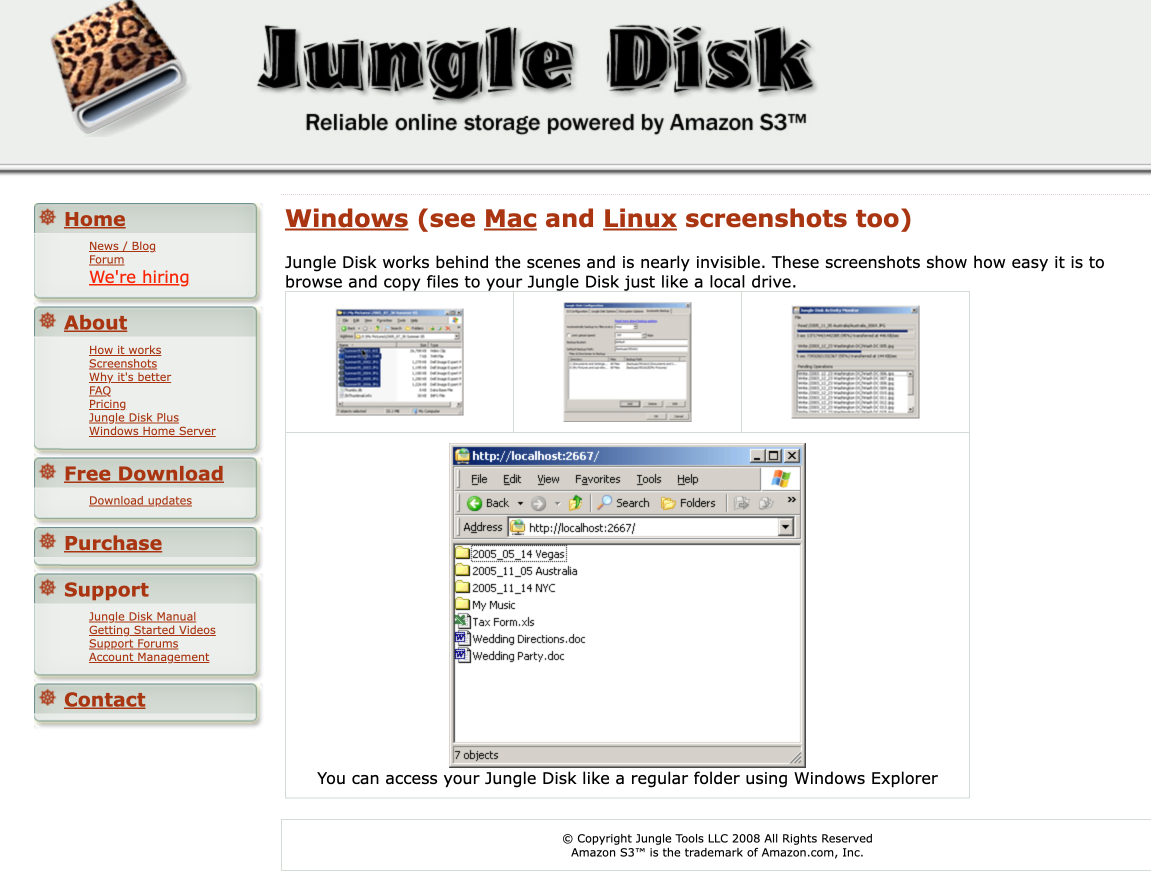
https://web.archive.org/web/20080214072822/http://jungledisk.com/screenshots.shtml
For me, the combination of external hard drives, “archive” DVDs, and S3-based backup was working well enough.
Over the years, MacOS introduced [Time Machine](https://en.wikipedia.org/wiki/Time_Machine_(macOS) (with all its issues when backing up to network shares). This was a big step in the right direction from the UI point of view. Where programs like Jungle Disk had to be manually started or scheduled, Time Machine would just be always on, automatically, in the background. It did not even need to perform a scan of the file system to figure out what changed since the last backup; MacOS would freely provide the changed files as part of the filesystem API. Very nice — when it actually worked.
After years of working through the various problems with Time Machine — backing up multiple computers to a network share involved often having to delete the backup history and start from scratch due to some corruption with the backup meta data — I eventually bought a NAS from Synology as a step up from the external hard drives connected to my WIFI router used before.
Around the same time, I also decided to hook up my computer via an Ethernet switch to the home network.
Learning #1 #
WIFI really is a poor connection compared to an Ethernet cable. Backups — many small file operations and some larger data transfers — benefit a lot from having the stable, comparatively high-speed connection that the cables provide. Really, using WIFI and wired network for backups is like day and night. I experienced this also, when moving my data from one Mac to another.
Now, with automagical backups running sufficiently well, I considered the cloud backup as a back-stop solution. Nothing that needs to run every day, or so I thought.
Change in data storage needs #
The huge benefit of having a NAS is that it can store a lot more data than your laptop and it is typically easily expandable by putting in larger hard drives. So, it is unlikely that you run out of space any time soon. Obviously, that may lead to a bit of data hoarding where one keeps stuff around just “for later”…
Another great feature is that the storage is always on. It is a server that runs on your network. So, even if your laptop is not online, other consumers can access the storage. Now, what are those “other consumers”?
In 2014 I bought my first network speaker — a SONOS — and it could play my iTunes collection from a network share. With this I was able to digitise all my CDs (quite a bit of data back then) and enjoy my music. This made moving houses later a lot easier.
And since this worked well, I did the same with my DVDs. I turned them all into video files on my NAS — thanks a lot Handbrake — and got rid of the many plastic boxes.
At this point it should be clear where this is going: the stored data eventually did not fit on any of my computers any more. That meant, that this data was not part of the backup process at all. Should anything happen to the files on the NAS, my music and movie collection would be a goner. This was less than ideal.
Synology has a solution for this. They provide a backup program — HyperBackup — that runs on the NAS and can store backups to a whole variety of other storage options, including AWS S3. Great! Off I went and configured several backup jobs pointing to different buckets, scheduled on different time tables, all according to how often the data was expected to change.
Accidental complexity in your home backup solution #
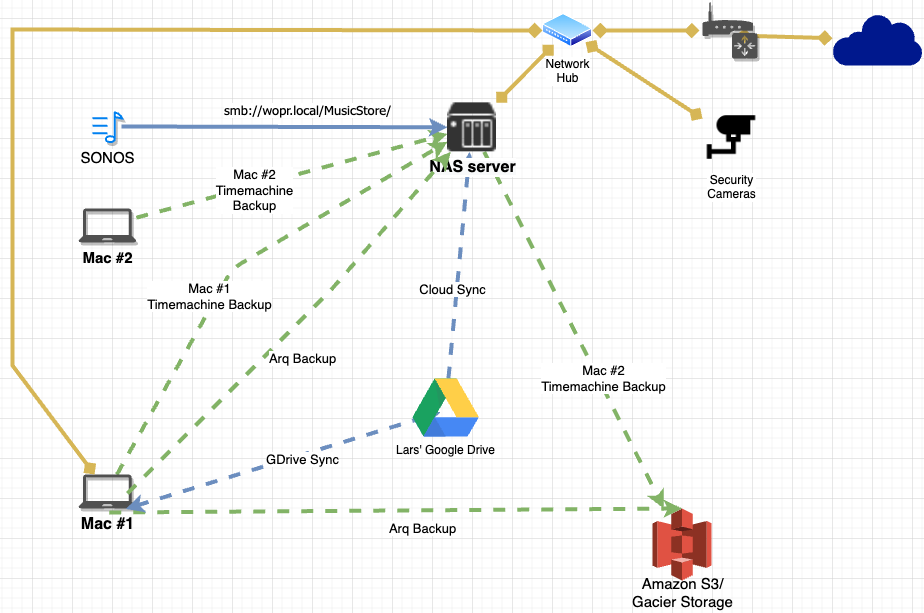
With some other changes, e.g., switching from Jungle Disk to Arq Backup at some point, I ended up with a surprisingly complex backup situation.
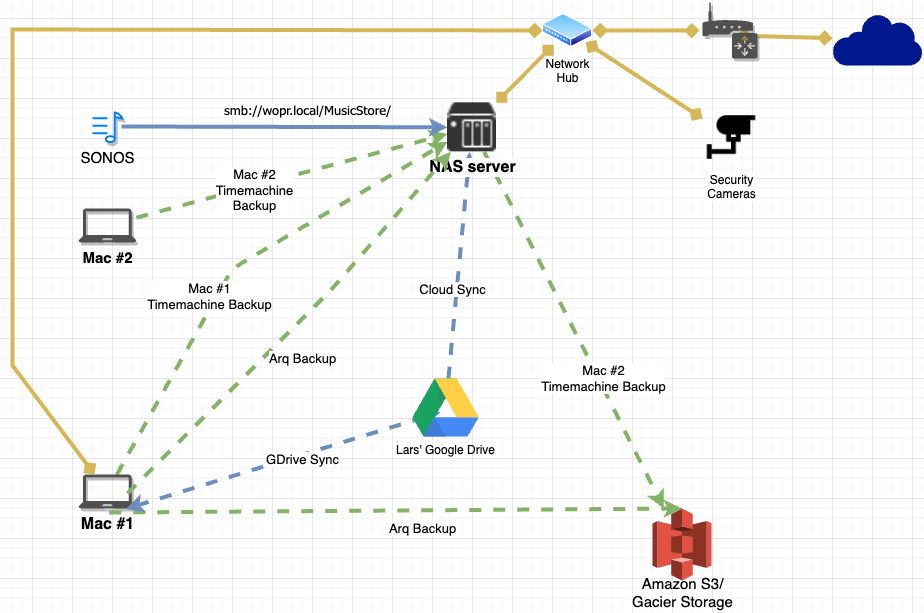
Network diagram showing computers connected to a single NAS server and the various backup streams between the computers, NAS and cloud services.
The diagram above is a simplified version of the one I use to make sense of all the dependencies. The main idea is that the important data should be backed up multiple times to different systems. As described Time Machine does have a track record of corrupting the backups, I decided to switch it to manual backup mode and to use Arq backup for daily backups.
These daily Arq backups go to the NAS server and to the AWS S3/Glacier storage. That way, I have a fast and cost neutral backup on my NAS. And if that fails, I can fall back to the S3 data. In the diagram you can also see that my Google Drive content gets backed up to NAS — that used to be a Dropbox account — which I have gotten rid of in an effort to have my data in fewer places.
Cloud storage costs #
" So, how much does all of this cost to run?" one might ask.
“Surprisingly little” is the answer (all cost numbers in this post are USD):

AWS Cost Explorer screenshot for the timeframe 2021-02-01 to 2024-01-31. Total cost $670.44 Avg monthly cost $18.62. Large spike in the last month, Jan 2024.
This is a screenshot from the AWS Cost Explorer for my account in the time between 2021 and 2024. With the exception of the very last month the monthly costs were rather low at around $13.00.
In those three years I paid around $450 in total for the whole AWS cloud storage experience. Not that expensive for the peace of mind it provided me with.
Using AWS S3 in this way was also the start of my experience using AWS services in general, which is something I now use on a daily basis. Not sure how to quantify the value of this — but it is certainly non-zero as it contributes directly to my ability to do my day job.
Arq Backup Storage pricing #
As mentioned, I switched to using Arq Backup several years ago and have been a very happy customer since. At some point I came across their documentation page Which Destination is Best For Me? that has this super handy chart:
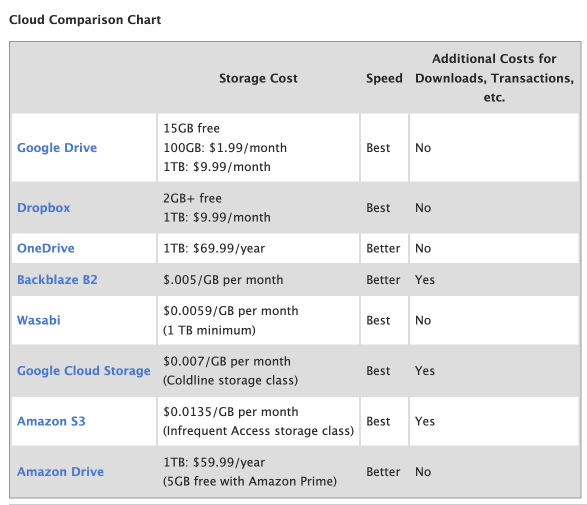
Arq Backup Cloud Comparison Chart
This lists the different options for storing your backup in different Cloud providers. AWS S3 with $0.0135/GB stands out as… cheap. Even for 2 TB of data this would just be around $28 and I don’t even have that much, do I?
But looking a bit closer shows: there are additional costs for downloading the data again. Not only will I have to pay for the storage but also for getting my data back in case I need it.
The very well-known Backblaze B2 entry seems to be the cheapest to store the data at only $0.005 per GB. This is the cloud backup company that regularly publishes stats about the hard drives they use and how reliable those are. While there are additional costs for API calls etc., they do not charge for getting the data back.
Their sign-up process is super simple and within half an hour or so, I had my first Arq and HyperBackup runs successfully tested with B2.
Moving Clouds - what to take #
Once the decision of moving my backups to B2 was made, the next question was: how? Should I just start from scratch and perform a new backup from my Mac and from my NAS? I gave this option a shot and after about 10 hours of upload the overall progress was around 15% or so. This would take a long time. It also would mean I would lose all the backup history so far. Both backup tools provide options for thinning backups after a while; which I had configured very loosely to keep everything for all time. I randomly tested to access some of the very oldest backups dating back to 2018 and could not restore them. So that “strategy” was not exactly water tight.
Learning #2 #
Backups should not be treated as archive options. The main focus should be to restore the data covering some reasonable timeframe. Anything that cannot be reasonably tested for a successful restore should be considered lost.
After establishing that I could reasonably restore data from October 2020 onwards I set the retention policies in the backup tools accordingly and ran the respective clean-up functions.
Using the cloud to move your cloud data #
I then googled for and found the very helpful article “Supercharged Data Migration with Flexify.IO” that explains how to get the data from AWS S3 to Backblaze B2 without a semi-manual download/upload dance and a multi-week timeline.
Flexify.IO is a cloud service that lets you configure source and target storage accounts and automatically creates virtual machines in the cloud that perform the download/upload for you. They do this in parallel and with VMs that reside in the Cloud providers networking infrastructure which means the data transfer speeds are much, much faster than anything I can have at home. Backblaze even has an offering to cover the costs for the data transfer with Flexify.IO when the transfer happens between specific regions.
My data transfer did unfortunately not fit that bill, so I had to pay for it myself, but I thought it good to know.
Now, with using Flexify.IO I was able to get all my stored data migrated within a single day. I paid a total of $33 for their services and migrated approx. 1.545 TB across 420.000 individual objects. The total transfer time — excluding all the configuration and set up — was just about 47 minutes.
Learning #3 #
Whatever you want to do “in the cloud” chances are that someone already turned that into a business. Take the time to search for easy solutions and use them if possible.
I just wrote that I paid $33 for the service of migrating my data from AWS S3 to Backblaze B2 with Flexify.IO. That is both correct and not the full story at the same time. While Flexify.IO charged me $33 for their services, AWS does charge the dreaded egress fees when you take data out of their network. And since that is exactly what I was doing here, I had to “bite the bullet”. Remember that large spike in the cost explorer diagram above?
This is what it looks “zoomed in” to the timeframe and service:
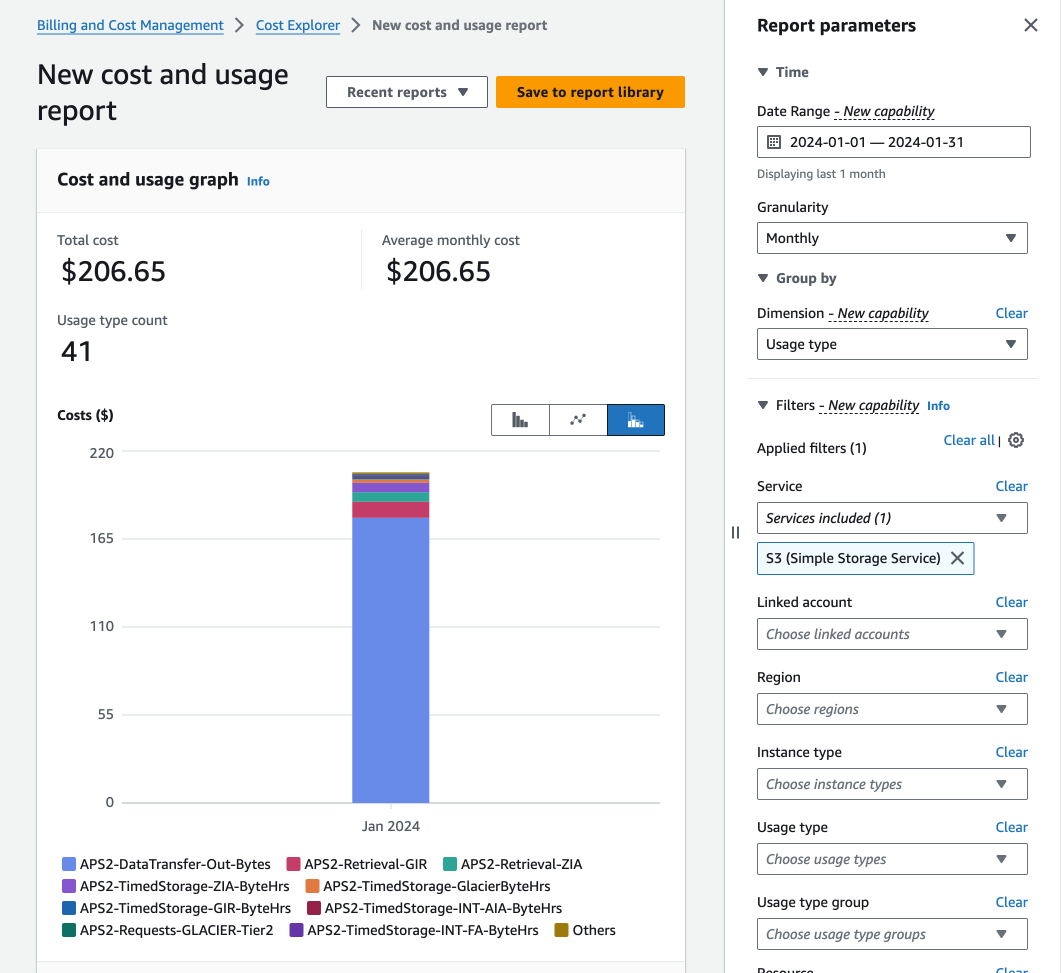
AWS costexplorer showing details of S3 service usage costs.
To get my data out AWS charged me $206. And the prices for those egress costs are not fixed to when the data was uploaded; AWS can increase them at any given point in time.
Now, $206 is not an absurd amount of money, but this cost is not obvious to anticipate beforehand. And for S3 use cases for backups like mine, these costs also apply to when you test your backup.
Hooking up the backup tools to the migrated data #
One of the positive surprises during this migration was how well the backup tools Arq and HyperBackup handled that the data is now at a different location. Both tools have the very easy to use option to “adopt” a backup set. For that, the tools read metadata that is stored together with the backup data in the bucket. The metadata is basically the inventory of all backups data “under management” and if it can be read successfully, the tools can continue the backup history. Compare that with trying to continue using a Time Machine backup on a new computer. Even after having done that a few times I fully expect to lose all my backup history given my past experiences with it.
Once the backup tools had adopted the backup sets in the new location it was time to check that we can in fact take new backups. So, I triggered all backup jobs to run. Given the existing backup runs were all present in the new B2 buckets, this should have been minor incremental backups. And they were. The backups succeeded as if nothing had happened.
Getting rid of the AWS S3 storage #
The final step in this migration was then to delete the S3 buckets. For normal buckets the AWS console supports both the deletion of the content in a bucket as well as the removal of a bucket. And most of the backup data had been stored in regular buckets with an “automatic storage tiering” option — which should balance storage costs and retrieval speed.
However, there were some buckets that had been stored in AWS Glacier. This service works differently from the normal S3 and is optimised for super-low-cost long term storage, e.g., archival use cases. Glacier does not allow to delete non-empty buckets (same as S3) and it also does not allow emptying the buckets via the AWS console.
One has to identify each individual archive file in each Glacier bucket and issue a deletion command for it. There is a separate article about that on the way. For now let’s just say this is a tedious process when done without a proper tool.
Other AWS costs #
While working with the AWS cost explorer I not only found the super tiny costs incurred by the Glacier storage (below $0.01 per month). I also found that I was being charged for an AWS Redshift service I was sure I was not using.
It turned out — after some investigation — that when I tried out Redshift earlier last year an automatic backup snapshot had been created.
When I dutifully deleted the Redshift instance, this backup snapshot stayed behind and incurred monthly storage costs (again, in sub-cents amounts).
It took me nearly an hour to filter the data in the cost explorer just right to understand what these costs were related to (Redshift backup snapshot) and where to find it. One has to navigate to the AWS Redshift page and then realise that it defaults to the us-east-1 region regardless of what region you were previously logged in to. Only after changing back the region to my “home region”, I was able to find the backup snapshot. Not providing an account wide overview of the resources used must be one of AWS’s worst design decisions — for their users that it.
Was it worth it? #
The big question now is: " how much does storing then backup data now cost in Backblaze?" While the first billing month is not over yet, I can only go by the estimate which currently sits between $7.50 and $8.90.
Moving the data out of S3 cost $206 and using Flexify.IO added another $33 coming to roundabout $240.
The biggest cost of this move clearly was my own time spent on this. I did not keep track on that, but I guess that it would add to about five hours all in.
This is more than just staying with S3 would have cost me for another year. But it does free me from paying egress fees when I need to restore the backup. More importantly, doing this I learned more about AWS, other cloud providers and offerings and about my own data. Also, I did not lose any data in the progress — which is always a great thing.
Epilogue #
Like I mentioned at the beginning, there were many “just in time” learnings during this project. All in all it only took a few hours on a weekend from the decision to move the data until the backups ran successfully against the B2 buckets.
Before I was not even aware of Flexify.IO and had only a vague idea about the egress costs for S3. I was rather ignorant about the number of alternative S3-compatible storage providers that are available.
I also learned a good deal about how to interact with AWS Glacier, using jq to parse returned JSON data, and using xargs to parallelise shell commands. This stuff is at the basis of mass operations in clouds; not very exciting, but very handy to know about.
Some other learnings I called out in the text are broader observations that I wish I had internalised earlier.
Anyway, that’s it for today.