
Some time ago I needed a way to control how long a database query would (at least) take. The purpose for this was to test out timeout behaviour of components that trigger and wait for the query result.
While the specifics of this testing purpose are not really that interesting, I learned quite a bit while implementing my " wait for a query as long as I like" solution.
During the write up of this solution I realised that it is based on a whole bunch of stuff that typically is not covered in DB programming 101 but probably more often “discovered” by individual developers. Often just knowing that there is already a solution available makes a seemingly tricky problem much easier to approach. So, in this piece I’ll try and cover all the bits and bops needed to make this solution work.
TL;DR #
I’ve built a Tableau workbook that connects to a PostgreSQL DB and that lets the user pick how long a query should take to finish and how many records should be returned.
You can download the workbook here.
If you want to know how this works, read on!
Something out of nothing, as long as you like #
A better approach would be to have a way to tell the database to just wait a second or however long we want.
Luckily, PostgreSQL has a function for that pg_sleep( secs ).
This function can be used like any other in a SELECT statement and just delays the query execution for as many seconds as we specify.
So, we need a SELECT statement for this. But what table to select from?
In the Olden Days™️ databases came with “magic” tables like DUMMY or DUAL that were there for just this purpose: generating a single result row.
With PostgreSQL we don’t need no magic table - we can just leave out the FROM clause of the SELECT statement and the database understands that as: return a single row.
Of course, I also wanted to have some confirmation of the wait in the result of the query. Ideally, that would include a start of the SELECT statement and end of the SELECT statement field.
If you’re now thinking " just use current_timestamp()" you just walked into the same trap I first got into. Typically functions and generally column expressions are evaluated once per row returned. With the current approach for the statement there only is a single result row - so how can we get start and end timestamp?
Once again, PostgreSQL has a tool for this: a special time function called clock_timestamp() which is specifically designed to return a new value every time the function is called.
The final piece to making this work is to understand that PostgreSQL evaluates the projected columns from left to right.
In the SQL statement below, I have already replaced the chosen_sleep_time column and the parameter for the pg_sleep() function with the Tableau parameter <Parameters.Seconds to wait> - this allows to conveniently change the wait time from the Tableau dashboard without having to edit the SQL.
SELECT
    clock_timestamp()            AS start_ts,
    <Parameters.Seconds to wait> AS chosen_sleep_time,
    pg_sleep(<Parameters.Seconds to wait>) AS sleep_time,
    clock_timestamp()            AS end_ts
With this set up as a Custom SQL in the Tableau datasource my first requirement is fulfilled: I can run a query for any length of time by simply setting a parameter in Tableau.
Neatly enough, this approach does not require any specific database objects to be present, nor does it create additional workload on the database server.
“That’s all good”, you may think at this point, “but I also want to be able to control how much data is being transferred from the database!”
I agree! This was my next thought, too. So, let’s look into how to do that.
A bottomless well #
One of the things SQL developers come across eventually is the need to generate records in the database.
Common scenarios for this are things like “list of all individual dates between a given start and end date” or “a sequence of numbers that can be used in set operations, e.g. to find gaps in existing rows”, etc..
This requirement to generate series is so common that many DBMS vendors now provide specific functions to do just that: set returning functions.
As far as I am aware those are not part of the SQL standard, so each DBMS vendor provides their own syntax and options. E.g. SAP HANA uses series_generate while PostgreSQL uses generate_series.
In any case, those set returning functions effectively work like range() in Python . One can provide a start- and end-value and a step size to the function and use it in a SQL statement as if it were a regular table or view.
With this knowledge I can create a custom SQL like the following. Like before, I already included the Tableau parameter <Parameters.Rows to create> in here, so that I can choose how many records should be returned.
SELECT
    series.row_number      AS row_number
FROM
    generate_series(1, <Parameters.Rows to create>) AS series(row_number)
The AS series(row_number) part simply defines the table alias and column alias for the generated values. That way, I can select series.row_number in the statement.
This statement will return a table like this:
| ROW_NUMBER |
| ---------- |
|          1 |
|          2 |
|          3 |
|          4 |
|          5 |
...
That’s of course fantastic if a bit boring. It also means that there is very little data generated and returned to Tableau.
In order to improve on that let’s generate some dummy data that is not just random characters.
Order in Randomness #
When creating dummy data one typically does not want random data. Instead, the data should come from a pool of possible values that are maybe combined and mixed up in arbitrary ways.
With array values in PostgreSQL this can be achieved with little effort.
The solution I used here is something I found by searching the internet. It’s based on Daniele Teti’s post How To Generate Random Data in PostgreSQL Hat tip to Daniele for his awesome post!
Let’s get into it.
The way to use an array value in PostgreSQL looks like this:
SELECT
    '{Albert,Berta,Cornelius}' as the_array
This gives us:
the_array               |
------------------------+
{Albert,Berta,Cornelius}|
This gives us all the possible values for the column, but we want to randomly pick one of those values for each row.
Here’s how that works:
select
    '{Albert,Berta,Cornelius}' as the_array,
    ('{Albert,Berta,Cornelius}'::text[])[1] as the_first_entry

the_array               |the_first_entry|
------------------------+---------------+
{Albert,Berta,Cornelius}|        Albert |
Important here are the syntax details:
- there is now a type declaration
::text[]behind the array values, so that PostgreSQL understands what type of values are supposed to be in this array. - the
()brackets around the array definition allow for selecting a specific array entry by providing the index via[1].
The final missing piece here is to randomly select one of the entries.
Again, PostgreSQL (like most other SQL DBMS) has a built-in function for generating random numbers. As per usual, this random function returns a value between 0.0 and 1.0.
In order to make this usable for our array we need to scale the value range to the maximum possible array index. And since array indexes are integers and the random function returns a floating point value, we need to convert it to an integer via the floor function.
Note: in more recent PostgreSQL versions (>17) there are variations of random available, that accept min/max scale parameters and return various number data types, including integer. With those features available one can omit the scaling and “flooring”.
select
    '{Albert,Berta,Cornelius}' as the_array,
    ('{Albert,Berta,Cornelius}'::text[])[1] as the_first_entry,
    ('{Albert,Berta,Cornelius}'::text[])
                         [floor(random()*3)] as a_random_entry

-- 1st run
the_array               |the_first_entry|a_random_entry|
------------------------+---------------+--------------+
{Albert,Berta,Cornelius}|Albert         |        Berta |

-- 2nd run
the_array               |the_first_entry|a_random_entry|
------------------------+---------------+--------------+
{Albert,Berta,Cornelius}|Albert         |       Albert |

-- 3rd run
the_array               |the_first_entry|a_random_entry|
------------------------+---------------+--------------+
{Albert,Berta,Cornelius}|Albert         |              |
This appears to work until we note that in the 3rd run, the a_random_entry column was empty. Developers that have worked with different programming languages probably already have an idea what might be causing this: in PostgreSQL arrays are 1-based, i.e. the first element has the index 1.
However, the random number we generate will be in the range of 0 and 2. ( random produces numbers strictly smaller than 1.0 - with scaling and flooring we end up with 2 as the highest possible value).
This could be addressed either by adding 1 to the random index or we can use another PostgreSQL feature to declare the index range for the array:
select
    '{Albert,Berta,Cornelius}' as the_array,
    ('{Albert,Berta,Cornelius}'::text[])[1] as the_first_entry,
    ('{Albert,Berta,Cornelius}'::text[])
                         [floor(random()*3)] as a_random_entry,
    ,('[0:2]={Albert,Berta,Cornelius}'::text[])
                         [floor(random()*3)] as a_non_empty_random_entry

-- 1st run
the_array               |the_first_entry|a_random_entry|a_non_empty_random_entry|
------------------------+---------------+--------------+------------------------+
{Albert,Berta,Cornelius}|Albert         |              |                 Albert |

-- 2nd run
the_array               |the_first_entry|a_random_entry|a_non_empty_random_entry|
------------------------+---------------+--------------+------------------------+
{Albert,Berta,Cornelius}|Albert         |        Berta |                  Berta |

-- 3rd run
the_array               |the_first_entry|a_random_entry|a_non_empty_random_entry|
------------------------+---------------+--------------+------------------------+
{Albert,Berta,Cornelius}|Albert         |              |              Cornelius |
With that we have all the pieces in place to generate our table with an arbitrary number of rows and some pseudo-random dummy data:
SELECT
    series.row_number      AS row_number,
    ('[0:9] = {Daniele,Debora,Mattia,Jake,Amy,Henry,Neil,Tim,John,George}'::text[]
     )[floor(random()*10)] AS first_name,
    ('[0:9] = {Rossi,Verdi,Gialli,Caponi,Gallini,Gatti,Ford,Daniel,Harrison,Macdonald}'::text[]
     )[floor(random()*10)] AS last_name
FROM
    generate_series(1, 5) AS series(row_number)

row_number|first_name|last_name|
----------+----------+---------+
1         |Tim       |Gialli   |
2         |Debora    |Daniel.  |
3         |Henry     |Macdonald|
4         |George    |Verdi    |
5         |Debora    |Gallini  |

5 row(s) fetched.
Putting it all together #
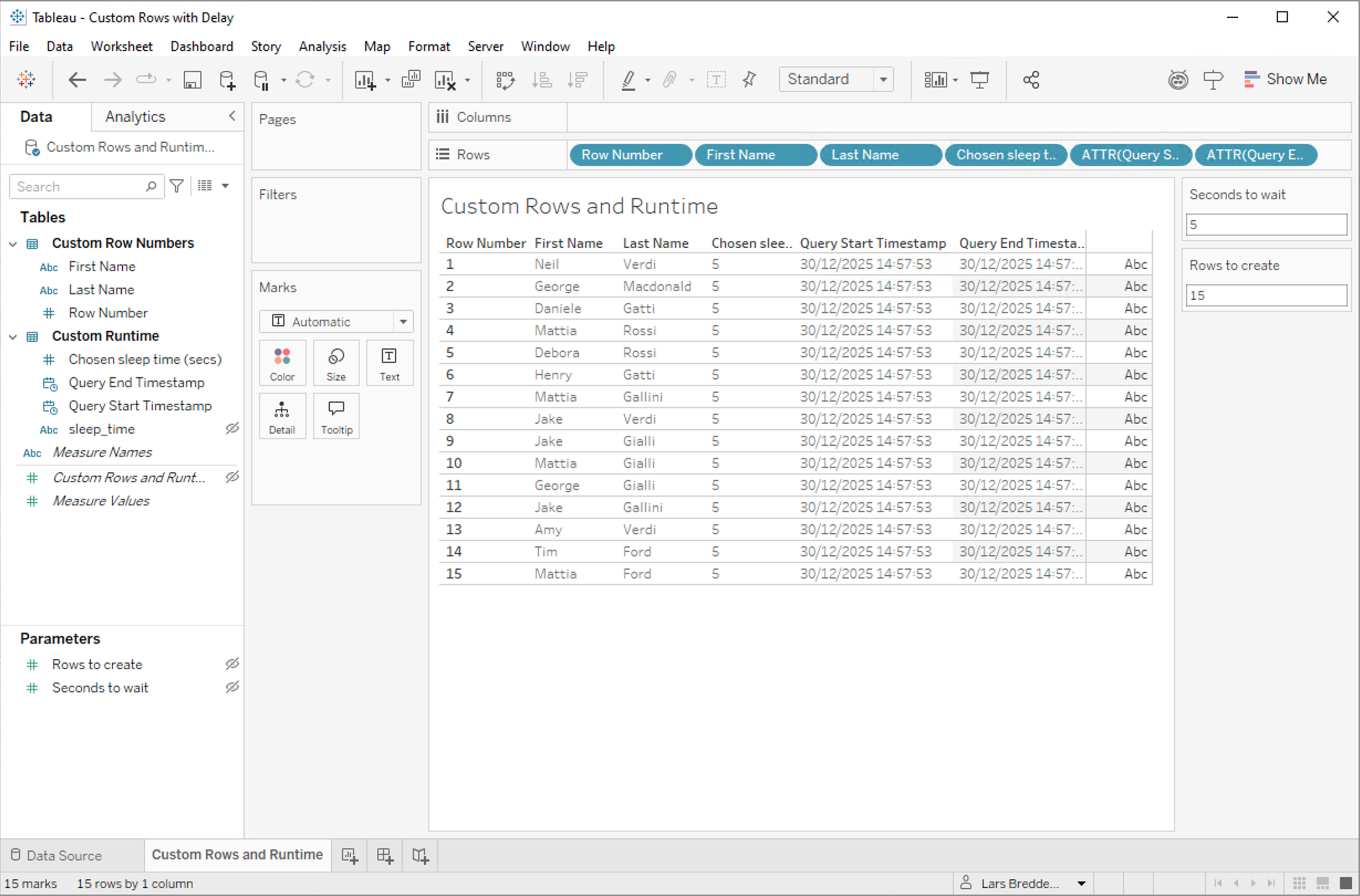
With those two SQL statements ready to go it’s straightforward to create a Tableau workbook that allows to choose the desired query duration and the number of records to produce.
We need a Custom SQL data source - I named it Custom Rows and Runtime:
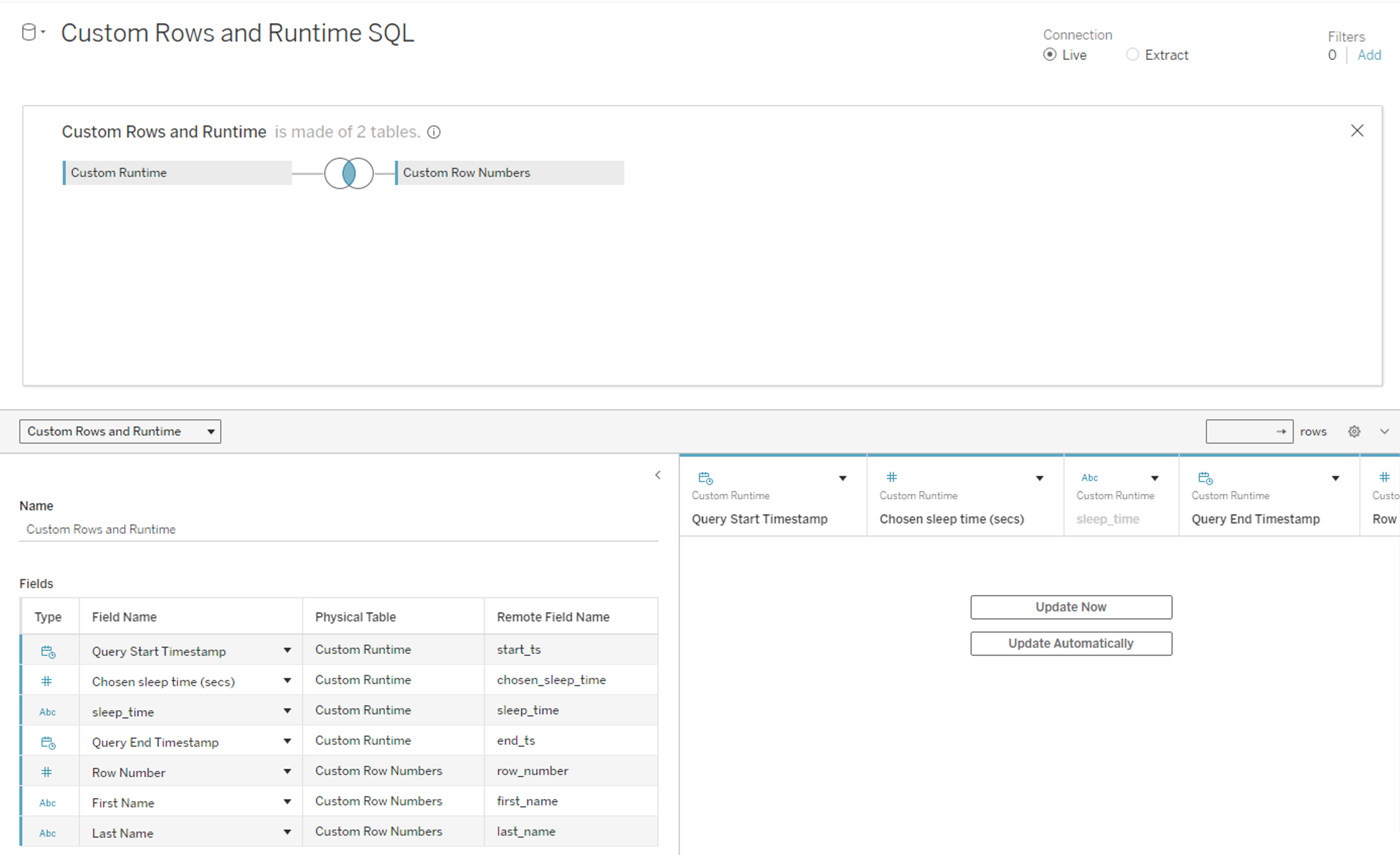
This Custom SQL data source in turn is made up by two custom SQL statements:
- Custom Runtime and
- Custom Row Numbers
These two custom SQL tables are joined by an inner join on a constant value TRUE. This guarantees that both statements will definitively be executed whenever the data is refreshed.
Note, for this use case, we want to ensure that the join is executed in the defined way - so using Tableau Relationships is not the way to go here.
As mentioned before I also prepared two parameters to be used in the custom SQL:
<Parameters.Seconds to wait><Parameters.Rows to create>
After naming the columns with readable labels I got this:
For those, that don’t like to create their own workbook, here is my version to download:
Custom Rows with Delay.twb Download
What to do with this now? #
This workbook can now be published to Tableau Server/Cloud and I can control, test, and check a whole range of timeouts, data transfer limits, memory consumption, etc.
There you go, now you know!